
Capturing Dialog Output
There are several ways you can get output from Dialog or know what action a user took or any data that was entered.
Return Codes
Section titled “Return Codes”The most basic dialog will always have at least one button which when clicked, will exit with a return code of 0.
The optional buttons, initiated via --button2, --infobutton (or derivatives), when clicked will give return code 2 or 3 depending on which one was clicked.
The following return codes are sent after each action. These can be ignored or used in a calling script for further action
| Action | Optional | Hotkey | Return Code |
|---|---|---|---|
| button1 | No | Enter | 0 |
| button2 | Yes | Esc | 2 |
| infobutton | Yes | 3 | |
| <timer> | Yes | 4 | |
command file quit: | Yes | 5 | |
--quitkey | Yes | cmd+q | 10 |
| Key Auth Failed | Yes | 30 | |
| Image Resource Not Found | 201 | ||
| File Not Found | 202 |
To process the return code on your script simply capture the result from $? in bash or via your chosen scripting language.
Example, processing return codes in zsh:
#!/bin/zshdialog ...<options_here>case $? in 0) echo "Pressed OK" # Button 1 processing here ;; 2) echo "Pressed Cancel Button (button 2)" # Button 2 processing here ;; 3) echo "Pressed Info Button (button 3)" # Button 3 processing here ;; 4) echo "Timer Expired" # Timer ran out code here ;; 5) echo "quit: command used" # post quit: command code here ;; 10) echo "User quit with cmd+q" # User quit code here ;; 30) echo "Key Authorisation Failed" # Key auth failure code here ;; 201) echo "Image resource not found" ;; 202) echo "Image for icon not found" ;; *) echo "Something else happened" ;;esacstdout
Section titled “stdout”In addition to return codes, output will be sent to sdtout if one or more --textfield or --selectvalues are presented. The default output is non-formatted other than to split the label and output with a : character.
Given the following dialog and user input:
dialog --textfield "text 1" --textfield "text 2" --selecttitle "make selection" --selectvalues "one,two,three,four"
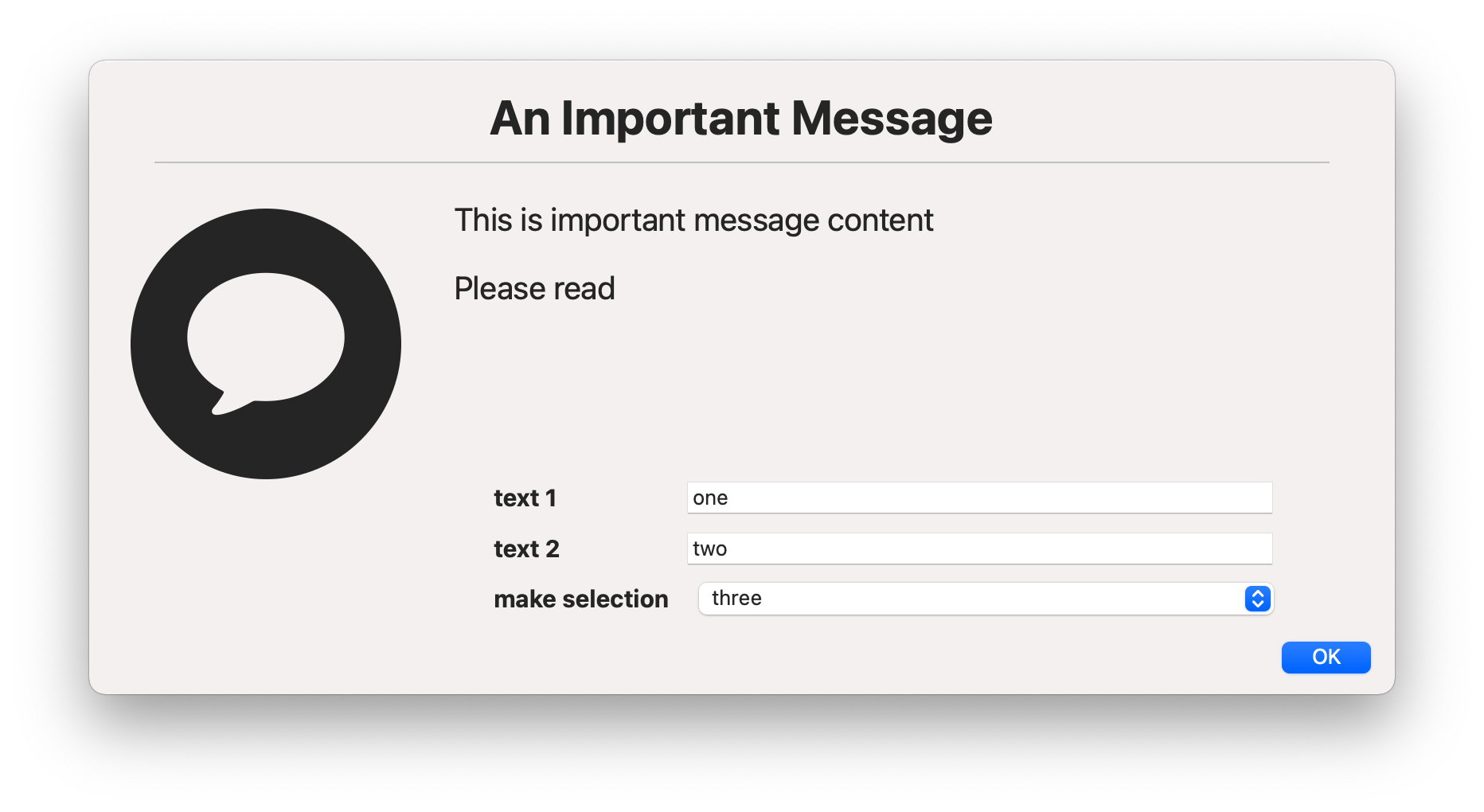
The output would look as follows:
SelectedOption : three SelectedIndex : 2text 1 : onetext 2 : twoSelectedOption is the text of the drop down option that was selected
SelectedIndex is the index of the option that was selected (indexes start at 0 so index 2 means the third option as listed was selected)
Text fields are presented using the label passed in to dialog as the label in the output, so for the above example:
text 1 displays the text that the user input in the text field labelled “text 1” and the same goes for text 2
To split these up you could use awk to process each line of output you were interested in, e.g.
/usr/local/bin/dialog <...> | grep "SelectedOption" | awk -F " : " '{print $NF}'For more advanced processing you can pass in the --json parameter which will then format the output as json for processing using a json parser (e.g. in python).
json output for the above example would appear as follows:
{"SelectedOption" : "three","SelectedIndex" : 2,"text 1" : "one","text 2" : "two"}Additional examples
Section titled “Additional examples”capturing the output and return code using python:
import subprocess
result = subprocess.Popen("/usr/local/bin/dialog <...>")text = result.communicate()[0]   # contents of stdoutreturn_code = result.returncode  # return code